Comparison of development modes between AutoCAD ActiveX and RhinoCommand
Comparison of development modes between AutoCAD ActiveX and RhinoCommand
Official Account: Non-Deconstructive · Author: Zhou Wenqi (Venchy)
Many friends are very interested in the secondary development of AutoCAD. With the gradual rise of parametric design, the use of Rhino in architectural design has gradually become a trend. The editor started learning AutoLisp many years ago and has written many AutoLisp scripts commonly used in work. In recent years, he has started to contact Rhino and tried secondary development of grasshopper and Rhino. It was found that the two softwares are not only similar in function, but also have many similarities from the perspective of development and software architecture. So they can be compared together. For these software, if you look at the operation level, everyone may be familiar with it, but you don’t know enough about the deeper content of the software itself. Based on so many years of script writing or secondary development experience, I feel that understanding these two software from the architectural level can actually be of great benefit to our work. The purpose of writing this article is to help everyone gain a deeper understanding of the two software through a comparative introduction to the secondary development of the two software. Even if you do not do secondary development, you can get some inspiration from it. Although AutoCAD also has secondary development methods such as .net, ObjectARX, etc., in order to make the comparison more intuitive, the editor chose ActiveX, which is relatively basic and easy to understand.
- Configuration of software development environment
Both software officially have very complete development manuals. AutoCAD: http://help.autodesk.com/view/OARX/2018/ENU/
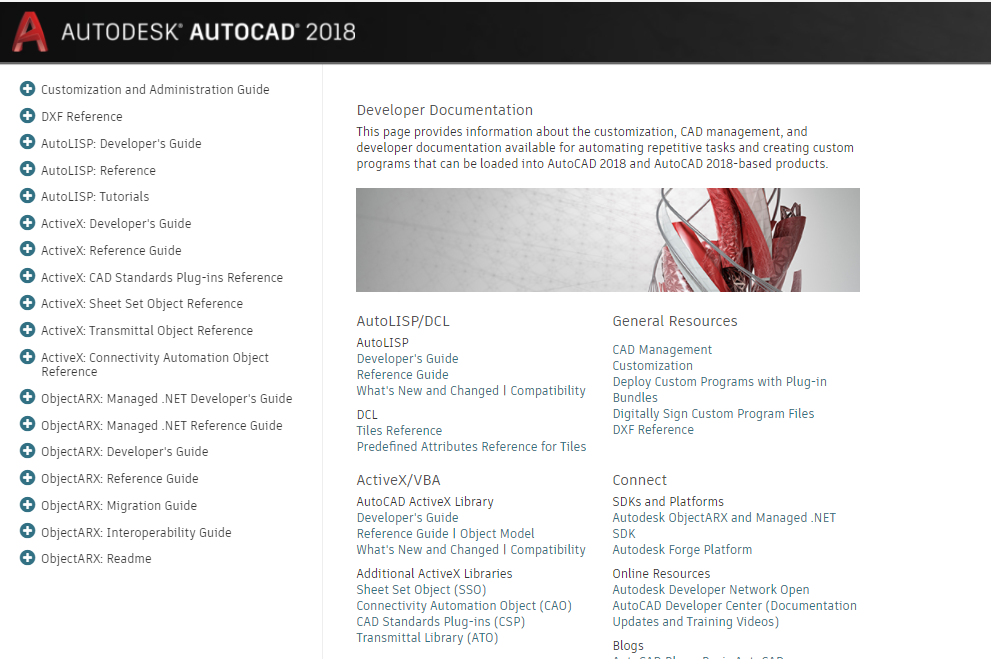
ActiveX的开发主要参考的是: (1) ActiveX Developer’s Guide (ActiveX/VBA), mainly a development method documentation. (2) ActiveX: reference Guide, mainly a description of the ActiveX configuration file library.
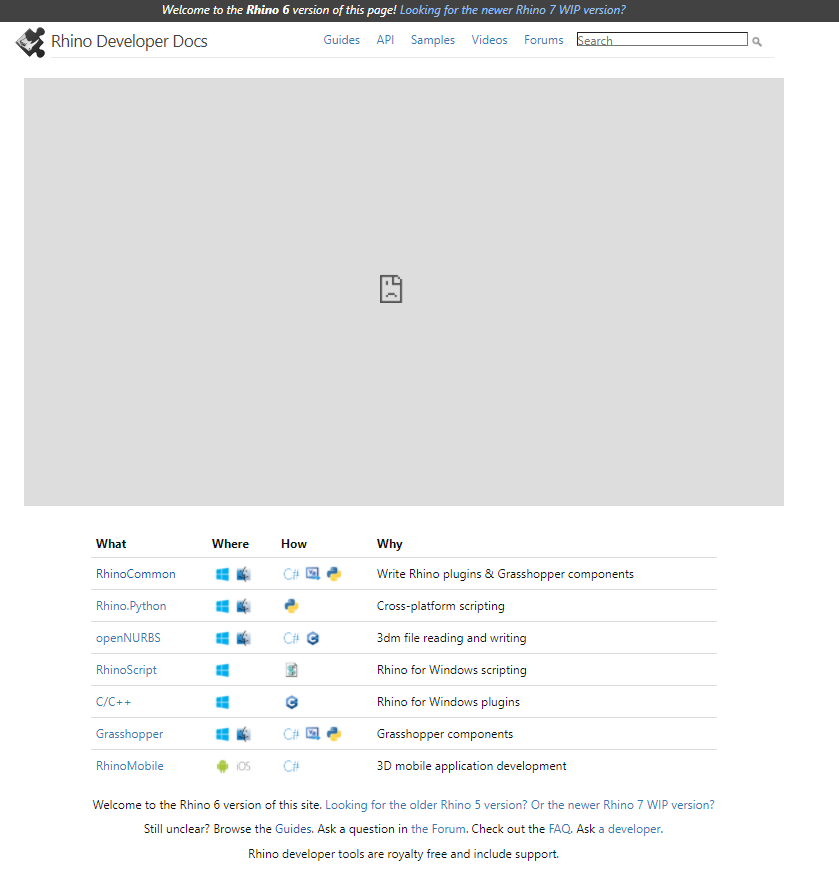
RhinoCommon: https://developer.rhino3d.com/
Development introduction: https://developer.rhino3d.com/guides/rhinocommon/ API文档: https://developer.rhino3d.com/api/RhinoCommon/html/R_Project_RhinoCommon.htm
Configuration of AutoCAD development environment: 小编首先创建的是.net framework 控制台应用。创建完成后,在控制台的引用中添加AutoCAD二次开发的配置文件:
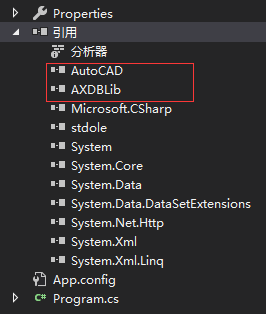
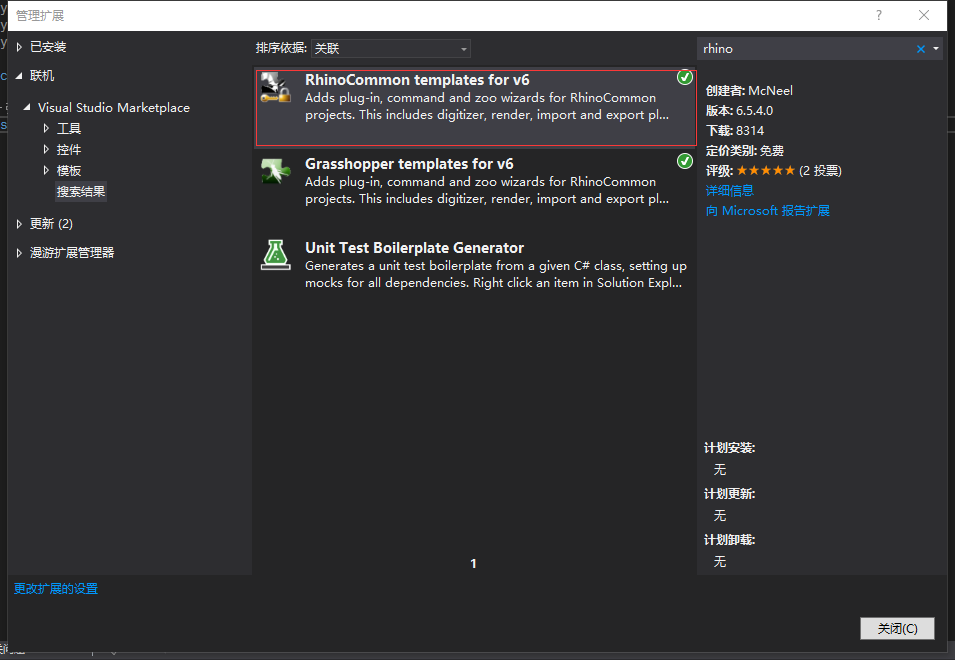
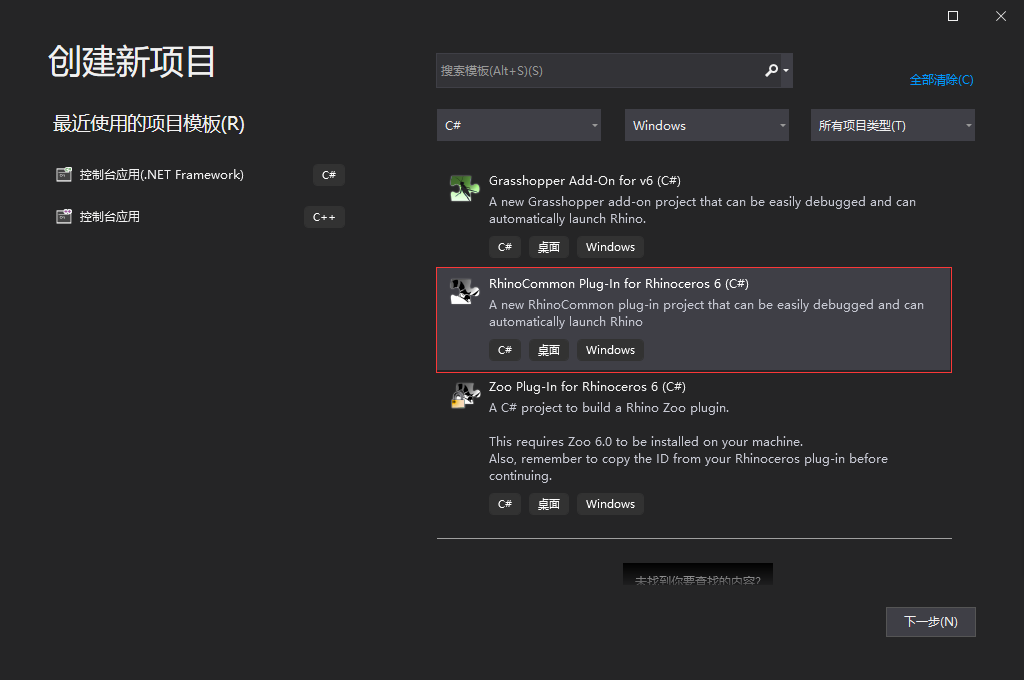
Reference the two files acax22enu.tlb and axdb22enu.tlb in the AutoCad installation directory C:\Program Files\Common Files\Autodesk Shared. The 22 here is the version number of AutoCAD2018. For other versions, follow the development instructions and so on. After the reference is completed, two reference library files, AutoCAD and AXDBLib, appear at the referenced location. In this way, the AutoCAD ActiveX development environment in .net has been configured. Rhino development environment configuration: Under the extension menu bar of Visual Studio, click Manage Extensions, search for RhinoCommon under Online, install this plug-in, and restart Visual Studio. At this time, the new Visual Studio project will contain the corresponding RhinoCommon development template. After creating the project according to the template, the development environment is configured by itself.
- Obtain software objects through programs
The AcadApplication class at this time is the current AutoCAD program.

In Rhino, the currently running rhino program can be obtained directly through the Rhino namespace. There are two classes under the Rhino namespace, one is RhinoApp and the other is RhinoDoc, which control the program’s sections and internal files respectively.
- Software data structure
After obtaining the software object, we need to give a certain introduction to the data structure of the software, which will be helpful whether it is for secondary development or for our daily use. First of all, for AutoCAD, any dwg drawing is a database, and each dwg database contains corresponding graphic data. For example, Layer Table stores the data of all layers, Block Table stores the data of blocks, and so on.
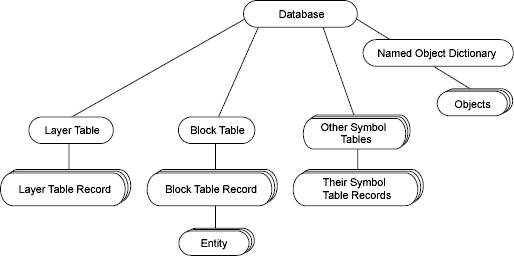
For an AutoCAD application, it is necessary to read the contents of this database and then place it in the memory space occupied by the current program. The data structure of this program in the memory space is as shown below:
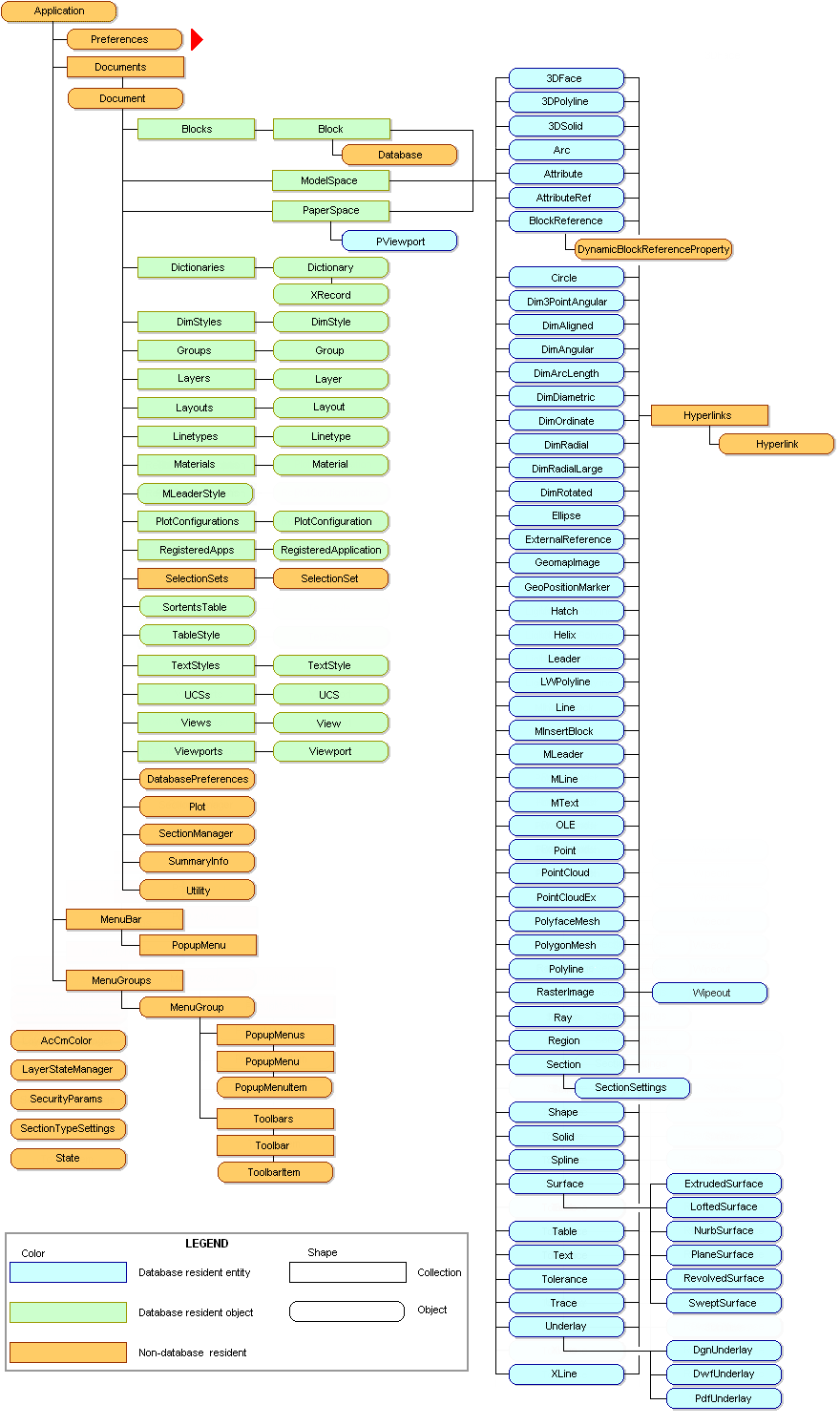
一个application包含了Preferences,Documents,MenuBar和MenuGroups。而其中Preferences,MenuBar和MenuGroups是软件设置相关的一些内容,我们平时使用的频率不高。而主要的图形文件都存放在了Documents中。此处Documents的概念就是软件打开的很多dwg图纸。Documents中任意的一个Document就是其中的一个dwg图纸。 Let’s take a look at the development instructions for Documents (http://help.autodesk.com/view/OARX/2018/ENU/?guid=GUID-2C8C8291-16C9-4A9F-8399-58D5DE4B9589#GUID-2C8C8291-16C9-4A9F-8399-58D5DE4B9589):
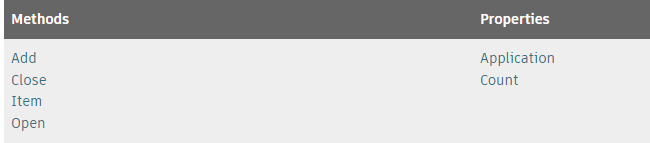
It contains four methods: Add, Close, Item, and Open, which means that we can create, close, switch, and open dwg drawings through the program.

The figure below shows the process of opening a drawing using code.
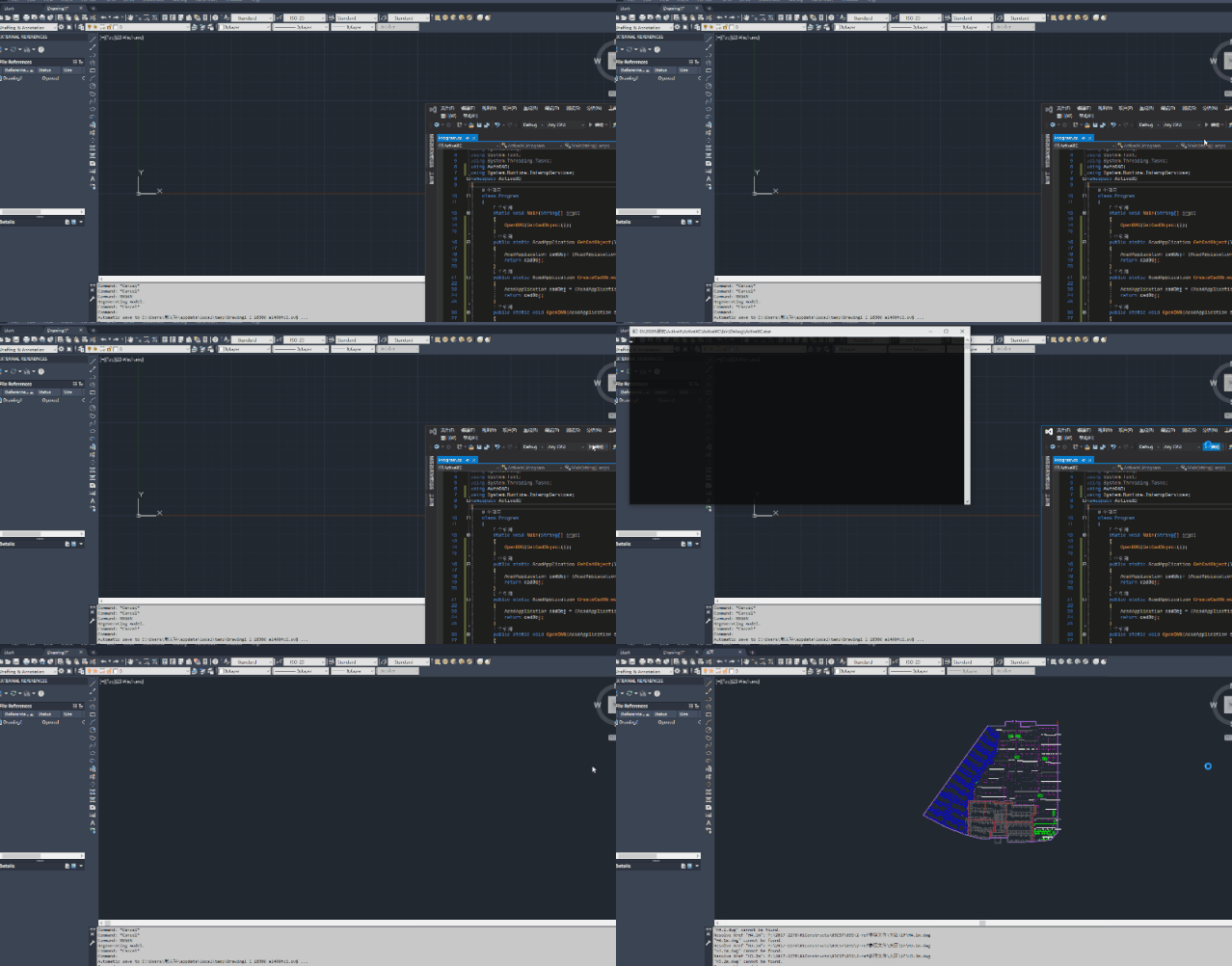
After opening the dwg drawing in CAD to obtain each Document, the Document contains, for example, all model spaces, paper spaces, and their primitives, layer information, block information, etc., and these data can be obtained and modified through code. For Rhino, there is a similar mechanism to access the graphics data in each 3DM file. The RhinoDoc class in Rhino is similar to the Document class in AutoCAD. The following is an example of opening a 3dm file under a specified path through code. Is it the same as the previous CAD code? The RhinoDoc class also contains a series of elements such as layer list, tile list (referenceInstance), primitive list, etc. For detailed instructions in the RhinoDoc class, please refer to the official development documentation: (https://developer.rhino3d.com/api/RhinoCommon/html/T_Rhino_RhinoDoc.htm)
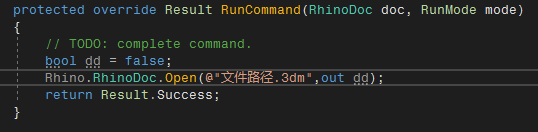
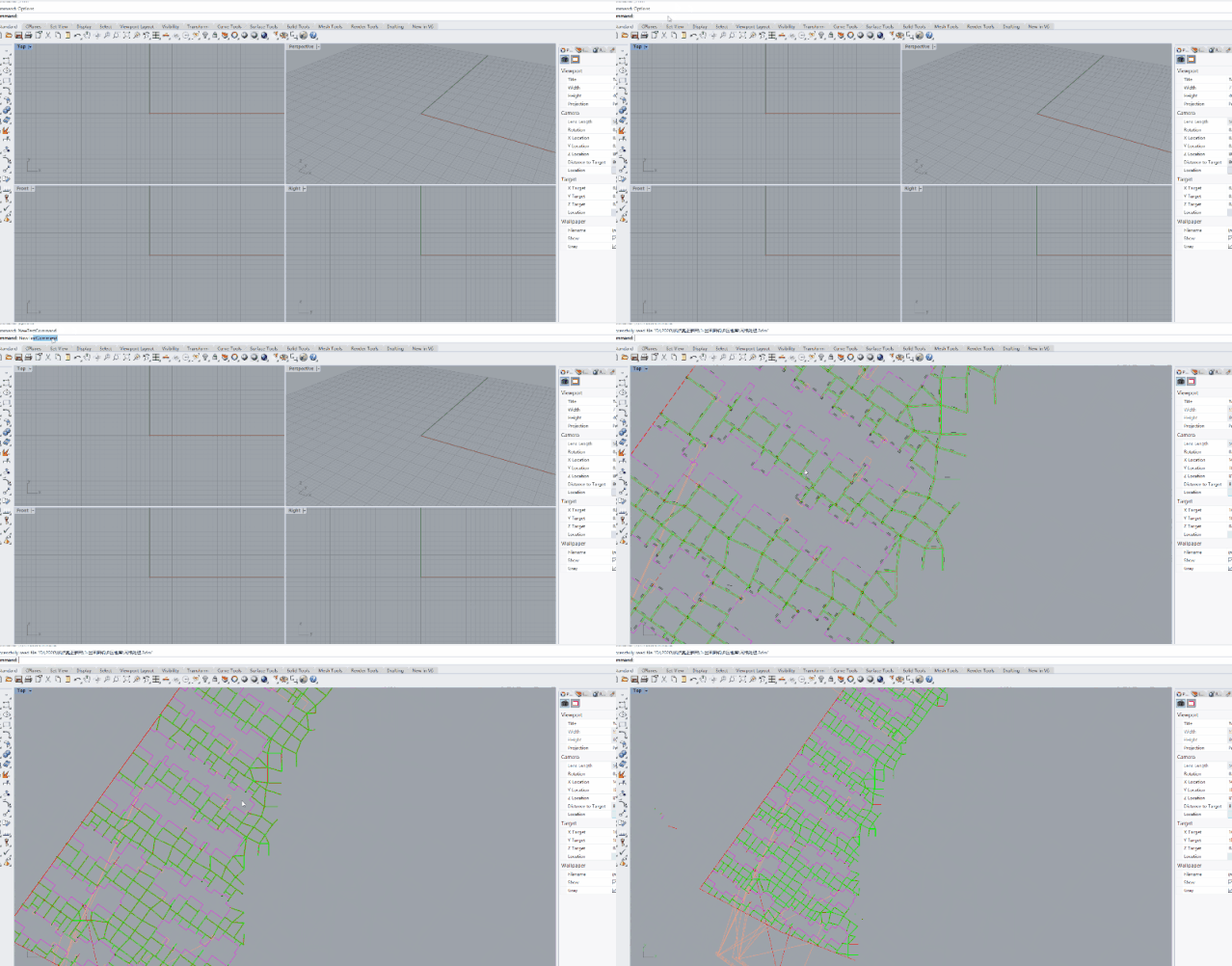
So to a certain extent, the data formats of AutoCAD and Rhino are actually very similar. Next, we will compare the development processes between Rhino and AutoCAD through several actual scenarios.
- Select graphics elements
In AutoCAD’s ActiveX, each Document contains a SelectionSets class, and this SelectionSets contains many SelectionSets. We can use this SelectionSet to select the objects we need to edit. The contents of each SelectionSet are as follows:
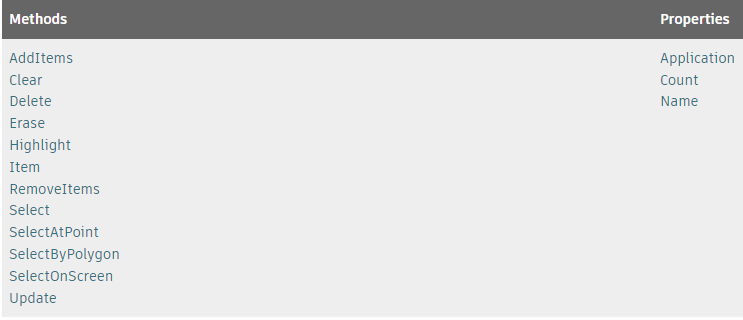
Among them, Select, SelectAtPoint, SelectByPolygon, SelectOnScreen is a few ways to select. The following code obtains an instance of an object through the Select method:
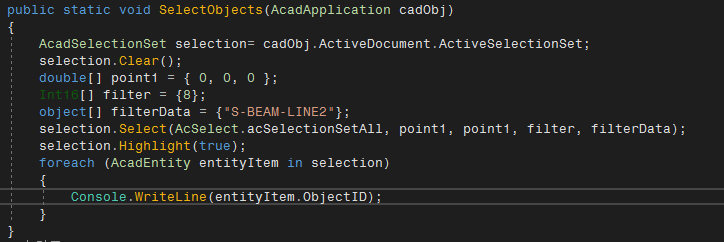
The meaning of filter and filterData refers to the straight line whose filter layer is S-BEAM-LINE2. For detailed instructions on element filtering, please see the following website: http://help.autodesk.com/view/OARX/2018/ENU/?guid=GUID-4CDE43DD-E3EF-4EF8-B377-4B9ED03E4C96 http://help.autodesk.com/view/OARX/2018/ENU/?guid=GUID-6026DE9A-DC00-46D2-938A-6EDCD8670578 After obtaining the selected object, the entity in the traversal selection is the entity we selected. Next, we can modify the entity we selected. Selecting primitives in RhinoCommon is a similar operation. The following code is the code for RhinoCommon to select primitives. Among them, GetObject is the selection class. By setting certain filtering conditions through GetObject, and using the method to obtain the object, the selection of the object can be realized.
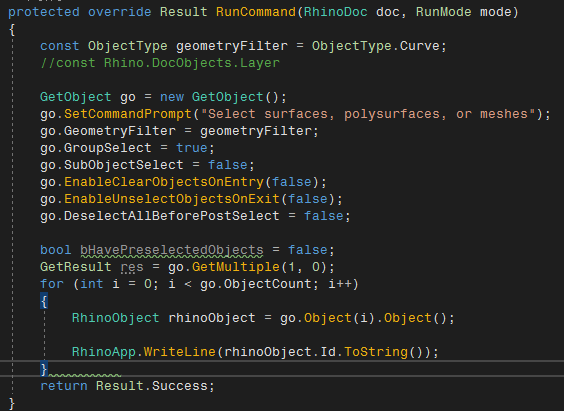
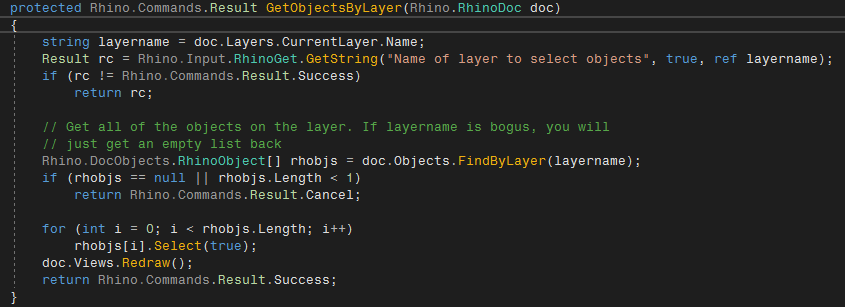
However, the geometryFilter cannot set the layer options, so at this time, we need to use another method to obtain the primitives through the layer.
- Create primitives
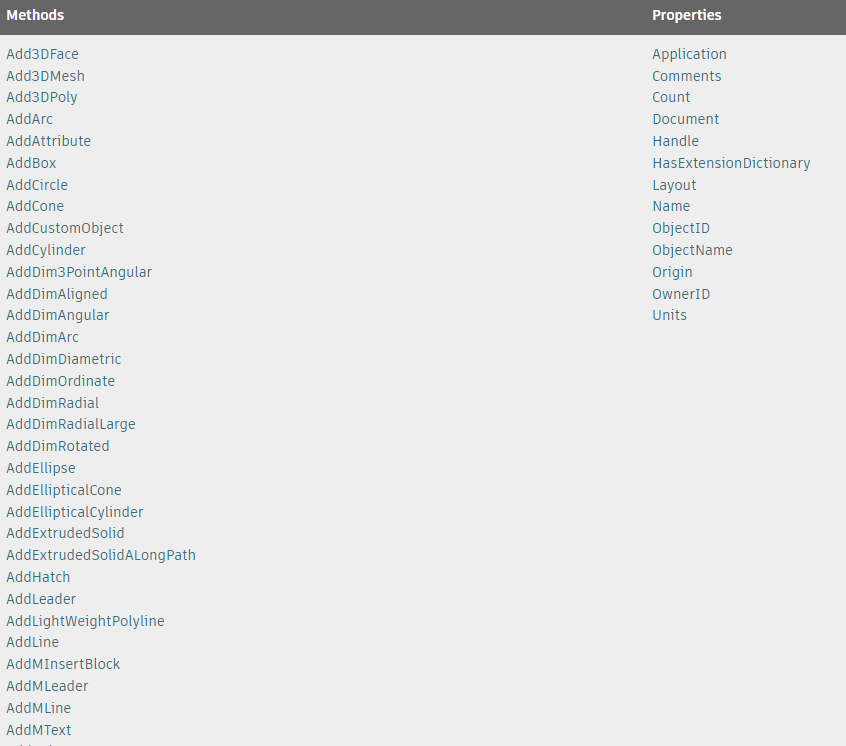
As mentioned before, all primitives in AutoCAD are placed in a table, and we can edit the primitives on the drawing by accessing the table. 在AutoCAD中,每个Document都有相应的ModelSpace,这就是我们所谓的图纸空间,ModelSpace提供了很多的方法,让大家可以在其中创建各种各样的图元。大家可以参考如下网址 (http://help.autodesk.com/view/OARX/2018/ENU/?guid=GUID-C541B6F2-1279-4D1C-8DC0-788F27F644EF#GUID-C541B6F2-1279-4D1C-8DC0-788F27F644EF), the methods provided are as follows:
Let’s take creating a straight line as an example.

By creating the corresponding points and using the Addxxx method under ModelSpace, we can easily add the corresponding graphic elements to the CAD drawing space. Similarly, we can also get the layers table of the current document and add new layers through the Add method of the layers table.

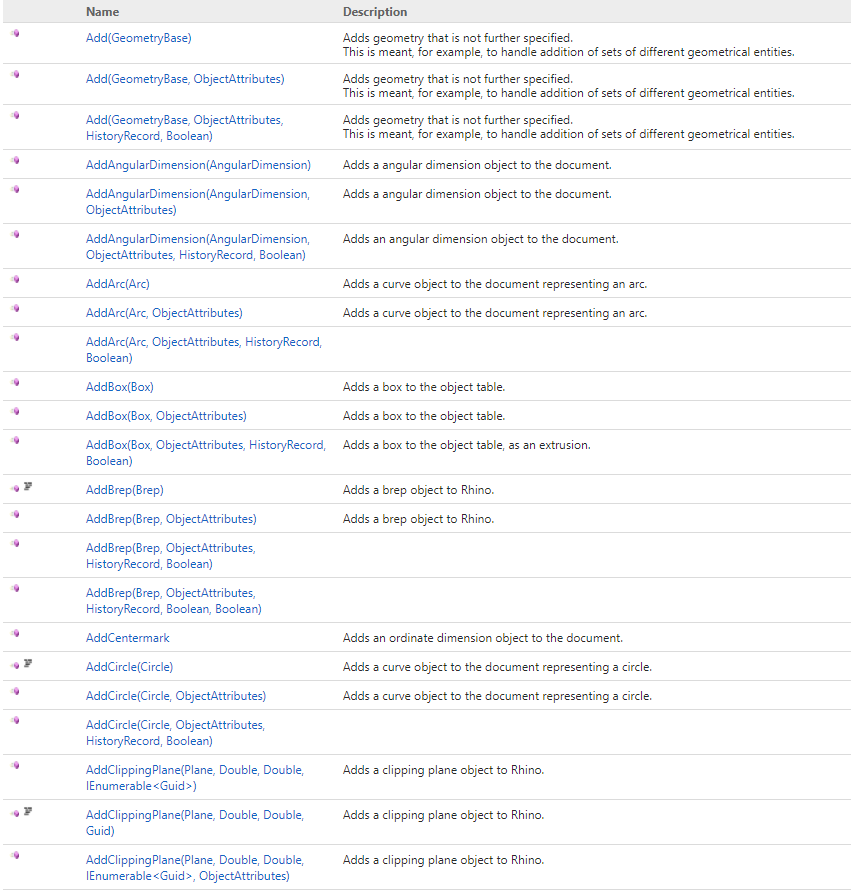
For Rhino, we can also create new primitives by accessing the corresponding table. There is an Objects table under RhinoDoc, which contains all graphic elements in the current 3dm graphic file. The Objects table itself is an ObjectTable class, which also provides many methods for adding graphics elements (https://developer.rhino3d.com/api/RhinoCommon/html/T_Rhino_DocObjects_Tables_ObjectTable.htm).
Let’s still take adding a straight line as an example to create a straight line in Rhino through RhinoCommon:
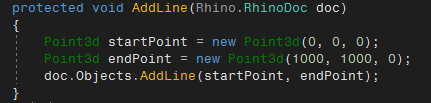
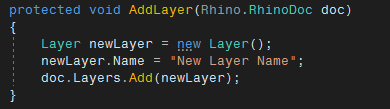
这个代码和CAD创建直线的方式简直一毛一样。 In addition, RhinoDoc also contains LayerTable for example, and we can also create a Rhino layer through RhinoCommon.
6.修改图元
Currently, we can create primitives and select primitives. So, how do we modify the primitives? Take modifying the endpoint of a created line as an example. In AutoCAD, we only need to obtain the Line object, and then simply replace the endpoint of the line by reassigning the endPoint of the line.

In RhinoCommon, you can also modify the endpoints of primitives in the same way:

- Delete primitives
In AutoCAD, any graphic element inherits from the AcadObject class. This class has its own Delete method. We only need to simply obtain the object that needs to be deleted and call the delete method to delete the graphic element. The code is very simple, only one line.

In Rhino, we need to delete the object by calling the delete method in RhinoObjectTable. There are multiple overloads of this delete method:

We choose one of the methods to delete the corresponding object. Or just a simple line of code.

- Summarize
The code examples in this article are actually very simple, and students without programming foundation may be able to get an overview. The purpose of writing this article is to help everyone understand these two software through comparison from the perspective of secondary development. In fact, these two softwares are very similar, and the editor also thinks that he has a certain understanding of these two softwares. AutoCAD以及其配套的工作模式从上个世纪90年代开始就一直霸占国内的建筑设计行业,而Rhino则是2010年前后在建筑设计参数化设计逐渐流行后,慢慢成为了一种趋势。从大家的设计习惯,以及相应的衍生产品的角度上来说,自然目前还是AutoCAD一统天下。从小编这么多年玩这两款软件的感觉来说,Rhino可能还欠缺一些针对建筑设计行业图纸相关的配置,有些诸如图纸管理等等的功能还待开发。但是从图元图素的管理这个角度来说,Rhino的布局是更加灵活的。 First of all, Rhino is based on OpenNurbs, and its graphic expression ability is far stronger than AutoCAD. Secondly, Rhino has a richer API interface, and users can more easily obtain the data they need from Rhino through programming. Once again, the grasshopper that matches Rhino greatly enhances Rhino’s capabilities. In addition to developing based on RhinoCommon, users can also develop based on grasshopper. In addition, the graphics data of Rhino and AutoCAD are completely matched, and the two can be converted to each other. Of course, this does not mean that Rhino can completely replace AutoCAD. However, the editor feels that the two can have a symbiotic relationship. Obtaining Rhino’s ability to quickly edit and generate graphics and batch processing, combined with AutoCAD’s advantages in traditional design workflows, may also be an option.
本文档由AI从非解构公众号自动采集整理,仅供学习参考。
LOADING…