一键打图,批量绑定-你不知道的CAD
One-click drawing and batch binding - CAD you don’t know
Official Account: Non-Deconstructive · Author: Zhou Wenqi (Venchy)
Let us describe a few scenarios:
- When it comes to printing pdf using cad, it is self-evidently painful for Paintdog without any plug-ins. The average small project is okay, but it seems impossible to print hundreds of drawings one by one without setting aside a day and finding a few helpers. Of course, in order to solve this problem, plug-ins such as Bitch Toolbox also integrate batch printing functions. But it seems that bugs appear from time to time.
- For drawing dogs who are accustomed to using external parameters, binding drawings is also a big problem. Opening them one by one and tying them one by one is time-consuming and laborious!
- The drawing dogs worked hard to set up the picture frame, and all the instructions on the drawing were taken care of. Suddenly one day, the boss said to change the date of the drawing! Suddenly, one day, the boss said to change the title of the picture! That collapse! The date of drawing is okay, every drawing is the same, so make an external reference and go into every drawing to get it done! But what about drawing numbers and drawing names? ! The title of the picture is not only on the picture, but also in the picture frame… Therefore, the style of painting is also to open the drawings one by one and change them one by one!
In fact, everyone has forgotten a very simple CAD function: drawing set. 图纸集可以帮你实现一键批量打印图纸,一键批量绑定图纸。无需重复打开dwg文件,批量修改图名图纸日期以及图纸目录的功能。
- Creation of drawing set
建立图纸集有以下几个方式:
- Enter sheetset in the CAD command bar to open the command box for creating a drawing set.
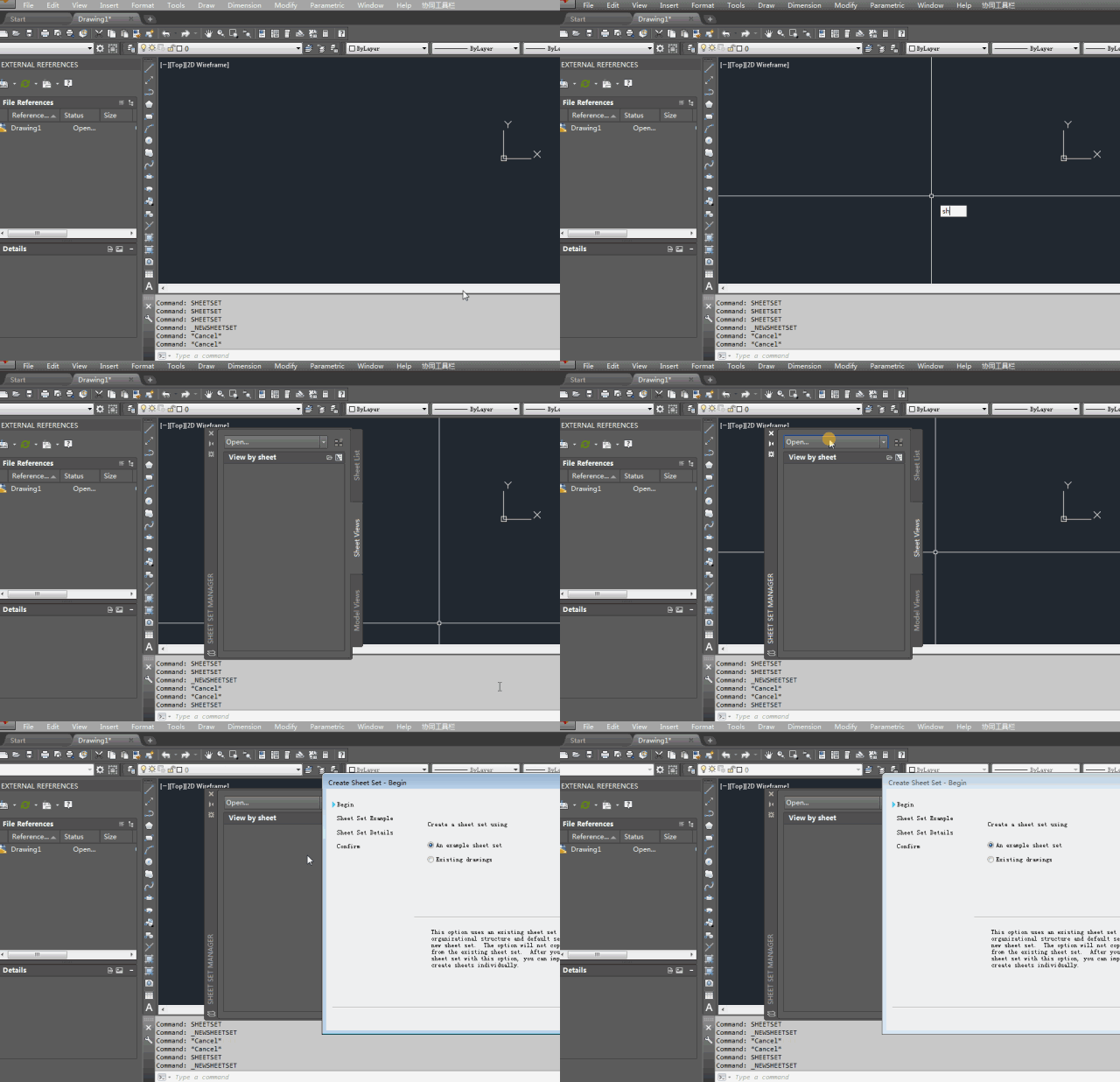
2)点击file,单击NEW SHEETSET
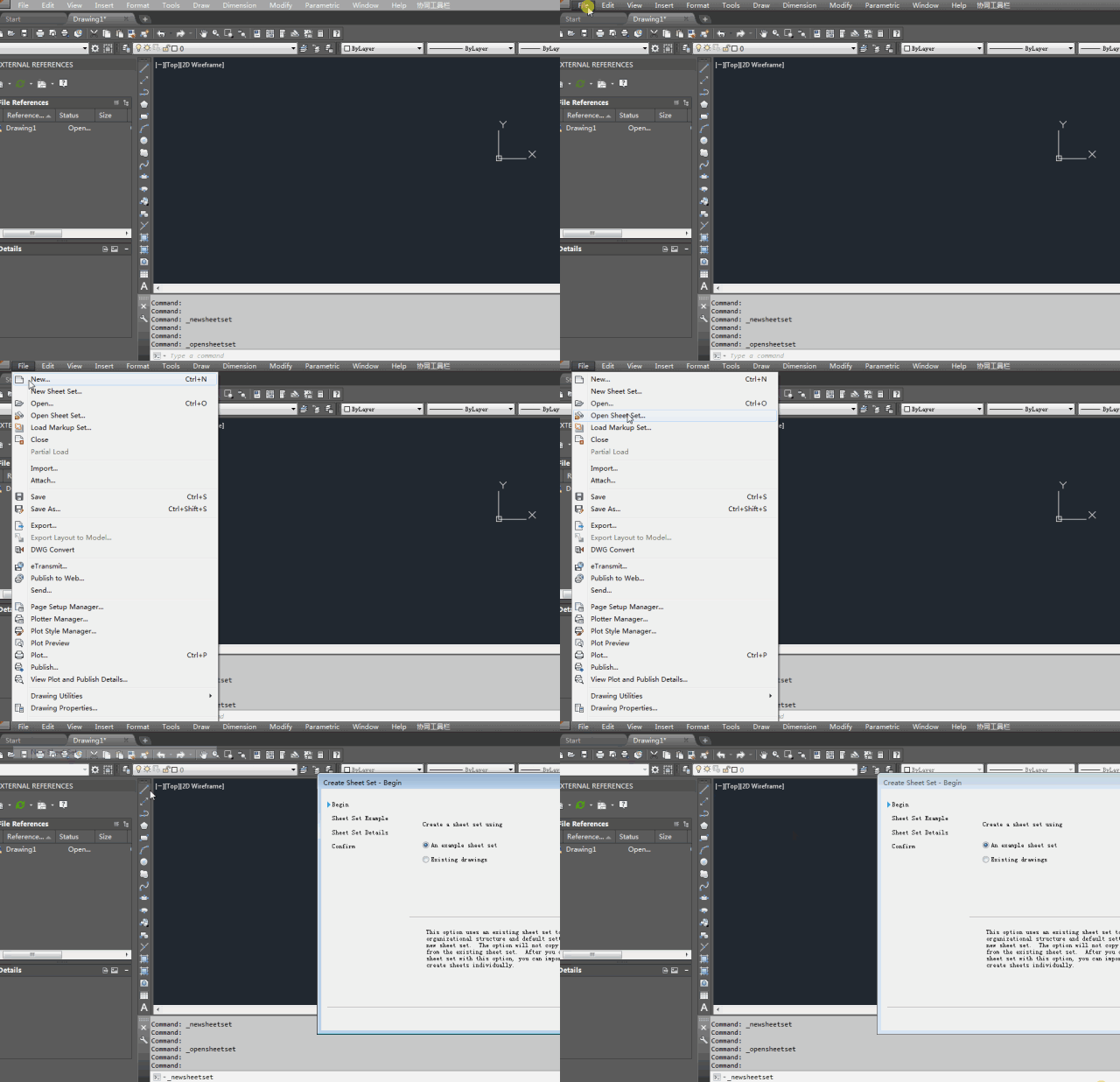
After entering the operation interface for creating a drawing set, follow the process to create the drawing set:
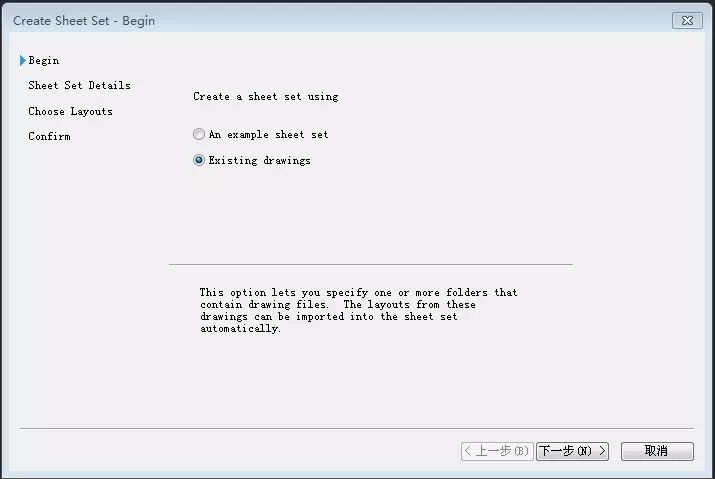
- Start creating. If a reference sheet set is available, select an example sheet set. If the drawing already exists, you can select existing drawing. We already have a drawing here, so select existing drawing.
- Enter the name of the drawing set and the storage path of the drawing set file.
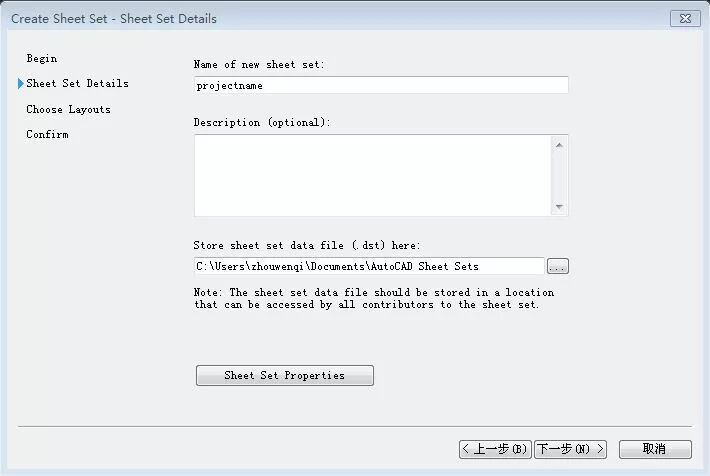
Each drawing set has a drawing set file, and the name of the drawing set and the storage path of the drawing set file are defined here. The suffix of the drawing set file is dst file. How to open the drawing set file will be explained later. 3) Select the drawings to be added
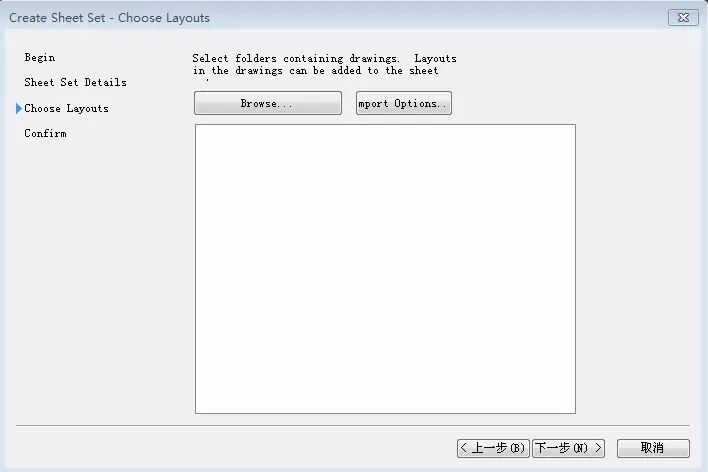
Click browse to browse the folder and select the folder where the drawing is located.
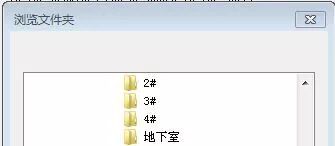
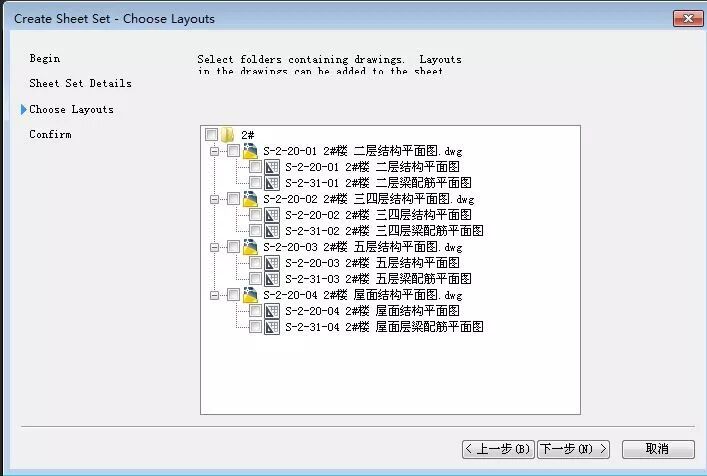
So I imported the graphics file drawn before (the paper space has been established)
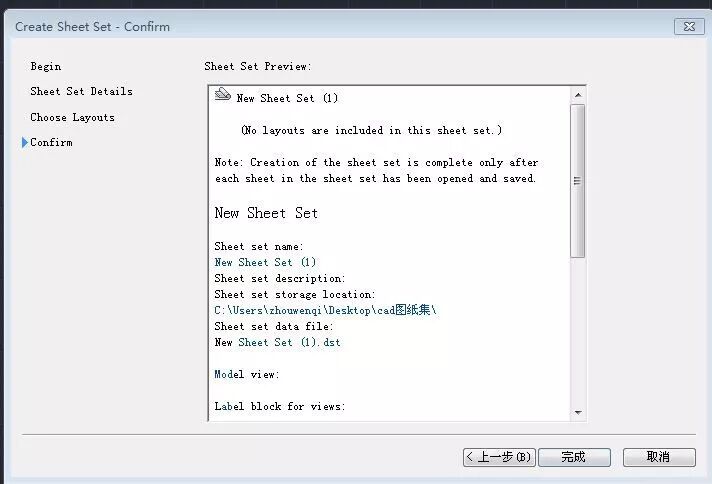
- Confirm the work. After these tasks are completed, click Confirm. Congratulations, your first drawing set is created!
- Opening the drawing set Opening a drawing set is the same as creating a drawing set. There are two corresponding ways:
- file-open sheetset, select the dst file of the drawing set, the drawing set manager will automatically pop up, and the drawing set will be opened.
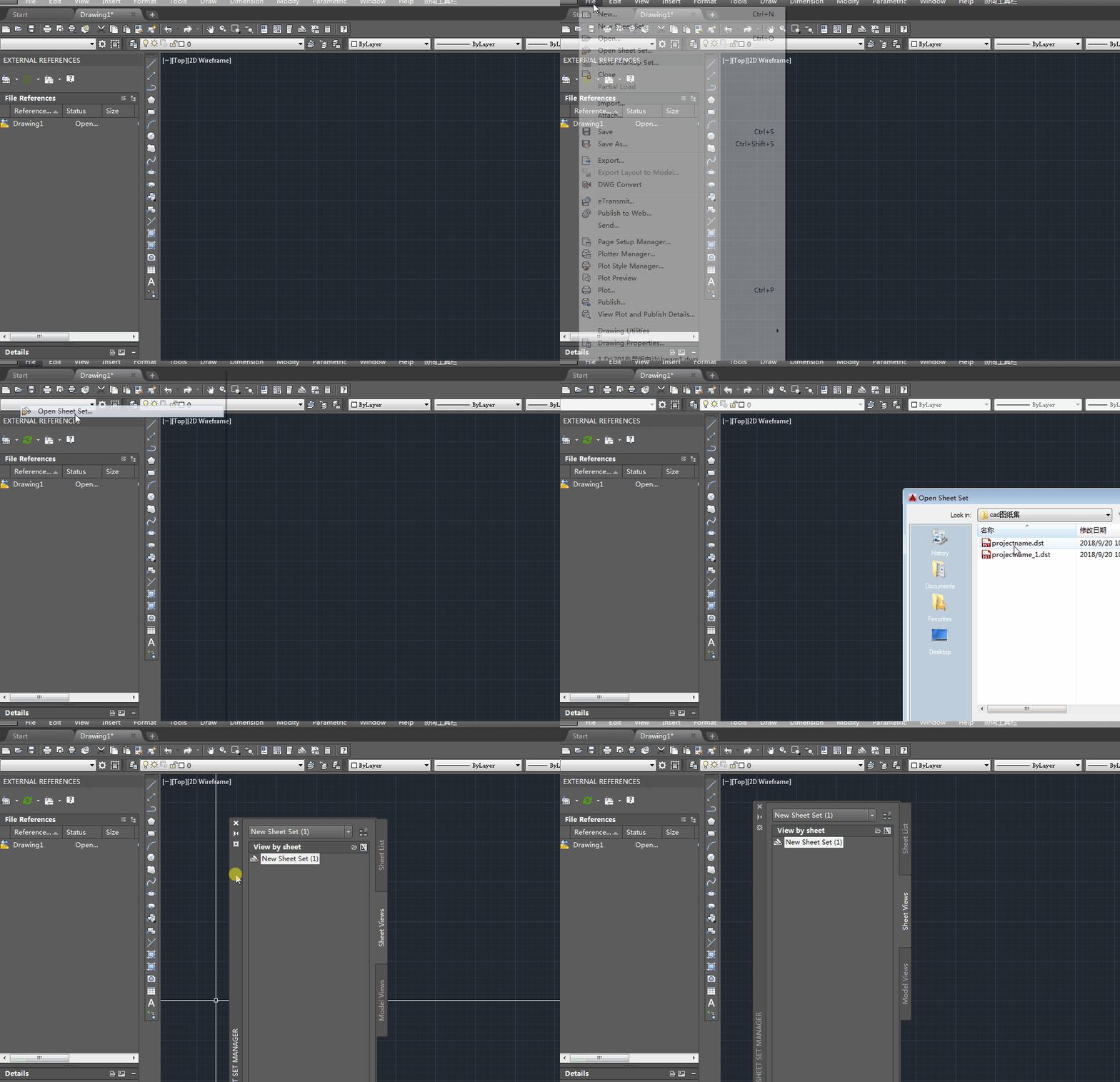
- Open the sheet set in the sheet set manager
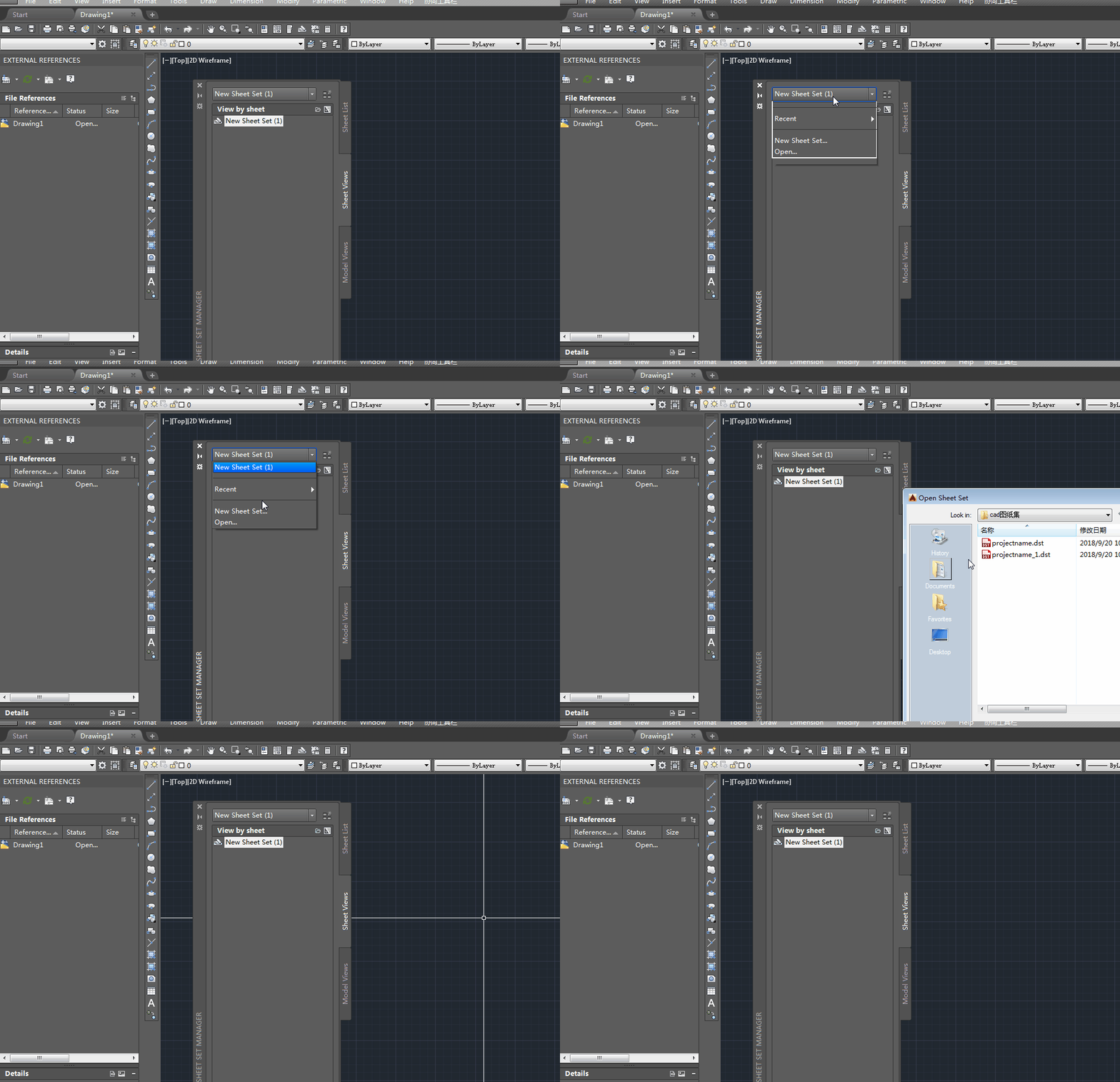
Open the drawing set manager, click the small triangle, click open, and select the dst file to complete the printing of the drawing set. The drawing set is opened as shown in the figure below.
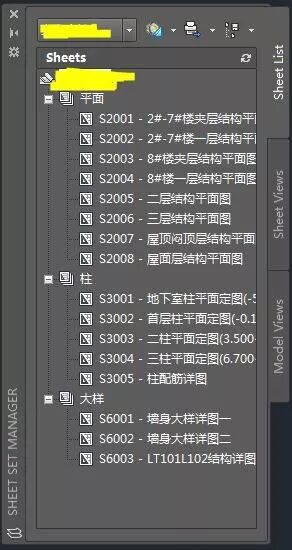
The sheetlist lists all the content in paper space.
- Association between drawing set data and drawing data
Previously I talked about how to create a drawing set and how to open the drawing set. So, where is his function? First, we can view the information that can be defined for each drawing in the drawing set. Select a drawing and hover the mouse over it, and the relevant data of this drawing will be displayed. Right-click, property, and definable properties related to this drawing will pop up.
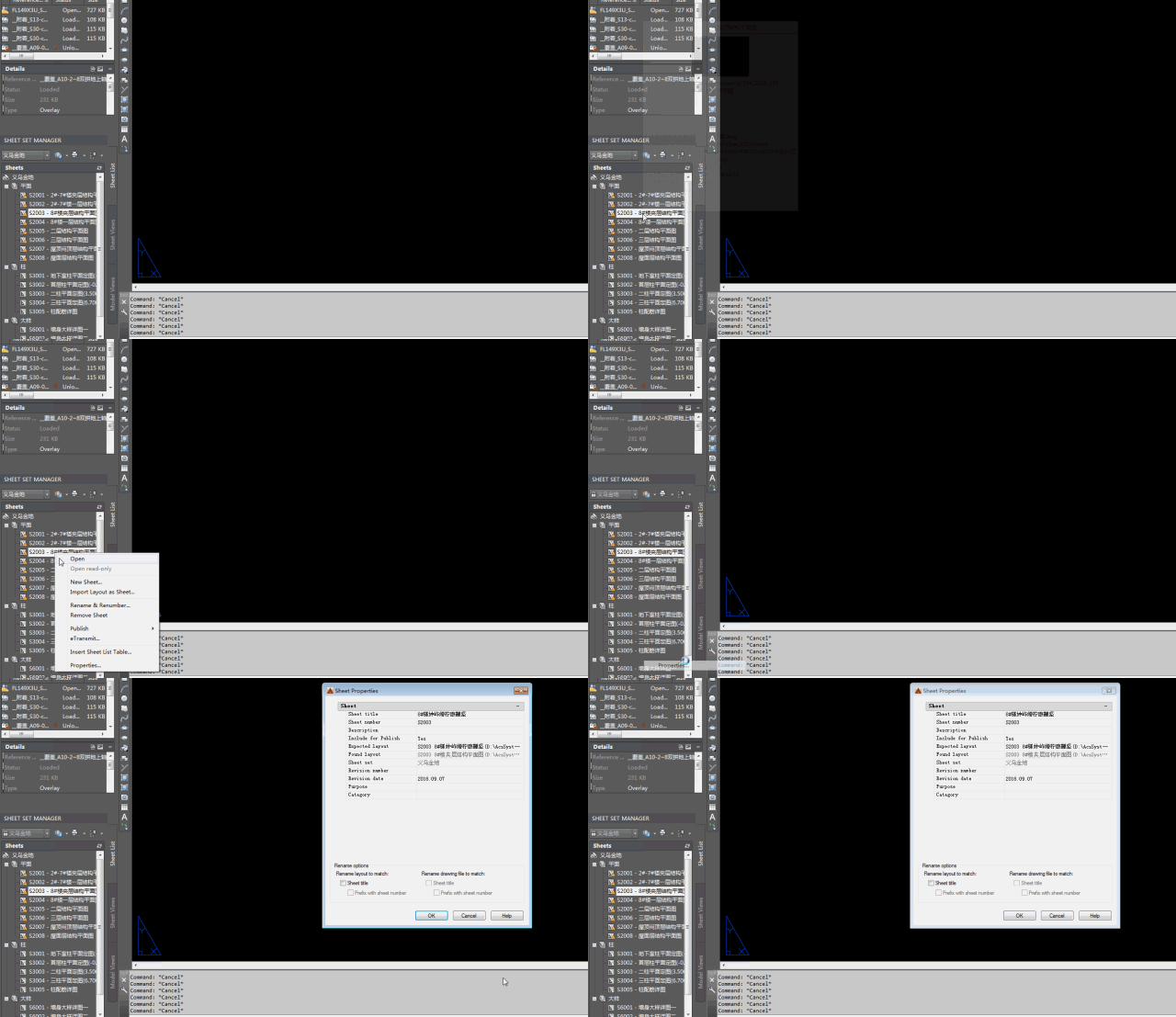
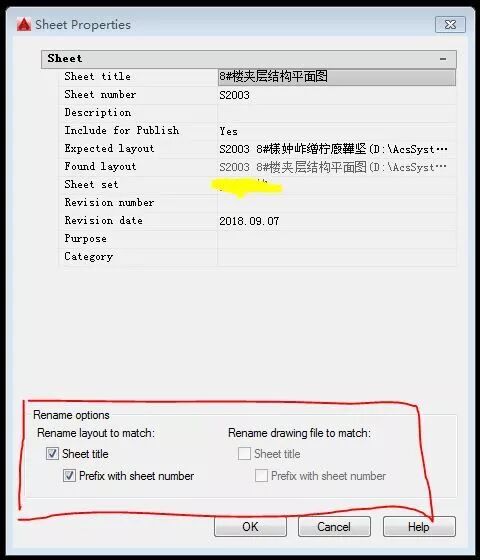
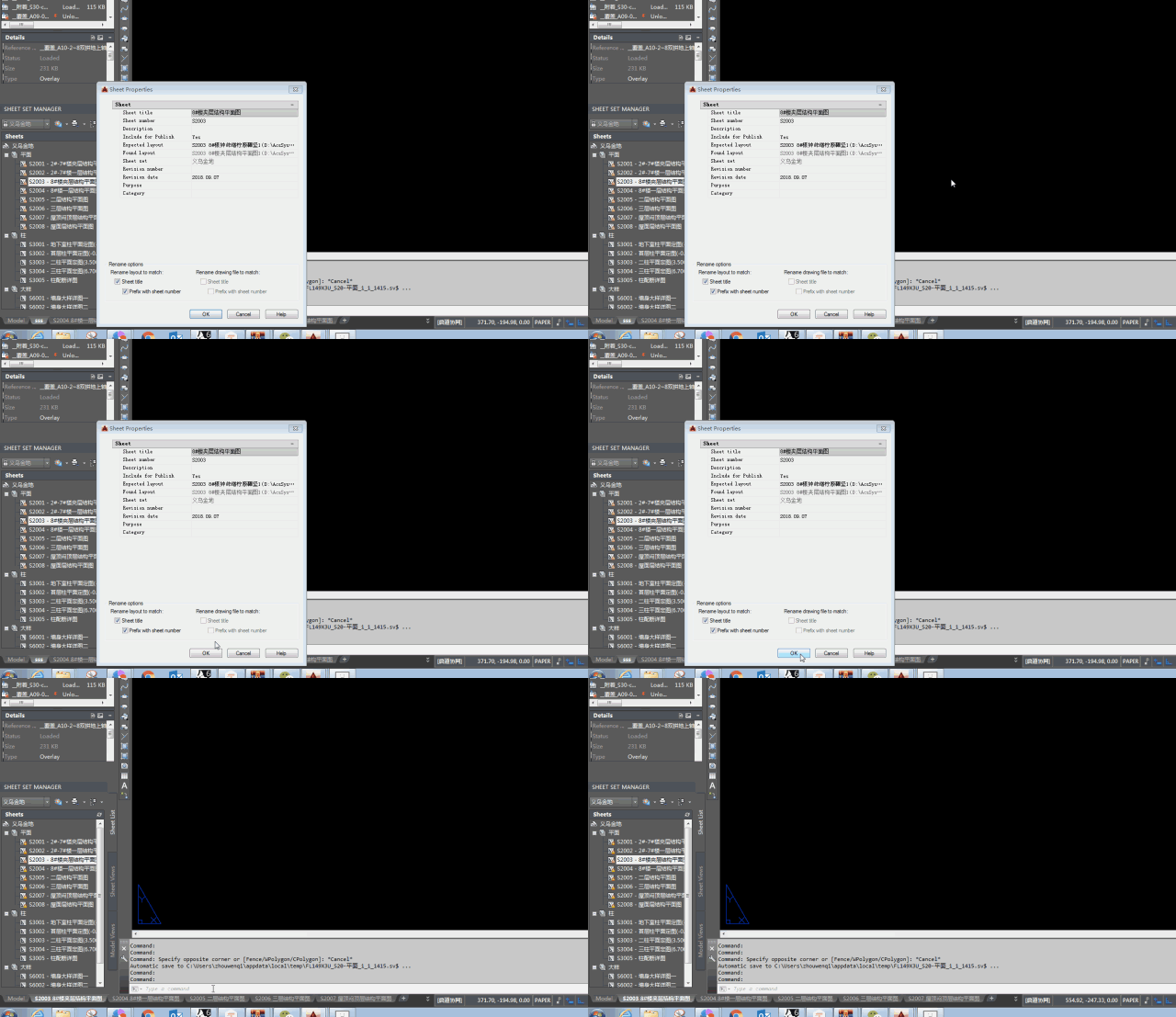
As shown in the figure above, each drawing can define the drawing name, drawing number, drawing date, remarks and other information. Just fill in the various definitions truthfully. In addition, there are two renaming options in the lower part of the command box. The one on the left clearly shows the name of the drawing space drawing. The one on the right is the named dwg file name. As long as it is checked, the drawing name in the paper space will be automatically changed. As shown in the figure below, the paper space is named sss.
那么接下来的数据如何交互呢?

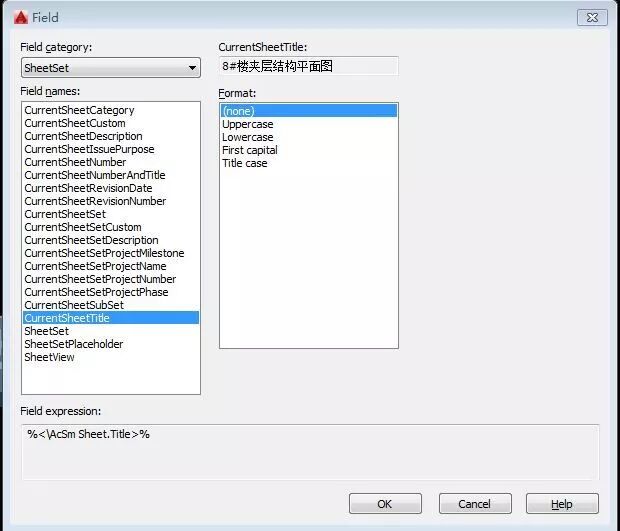
Select any piece of text in paper space and hold down ctrl+f on the keyboard at the same time, and the field option box will pop up. Select an item of information in the current drawing. The interactive file becomes the current drawing name. After the association is completed, if you want to modify the drawing name, you only need to right-click the drawing properties and modify the data in the drawing properties to complete the modification of the drawing name. No need to repeatedly open each dwg file.
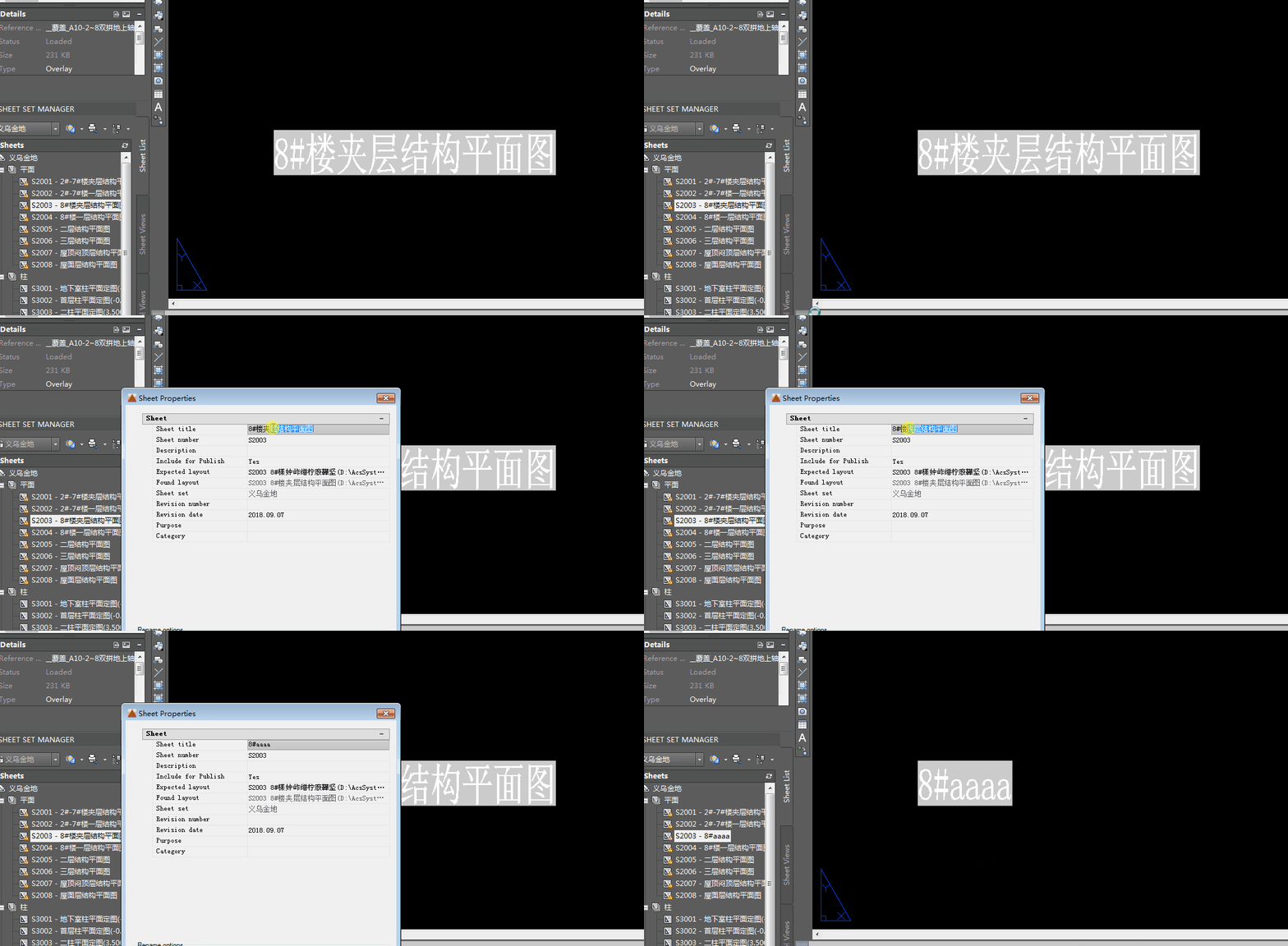
This is not only for a single drawing, but also when making a drawing catalog, you can also use this operation to modify the relevant data in the drawing catalog.

这样的数据关联,图纸目录也和图纸集产生了数据关联。图名,图号,出图日期等各种信息都可以通过图纸集来管理。
四、批量打印pdf
Batch printing requires the use of the publish function that comes with CAD. Before batch printing, you need to set the printing format of the layout drawings. The setting method is as follows: Right-click the page setup manager in each paper space, select modify, and set the drawing printing format.
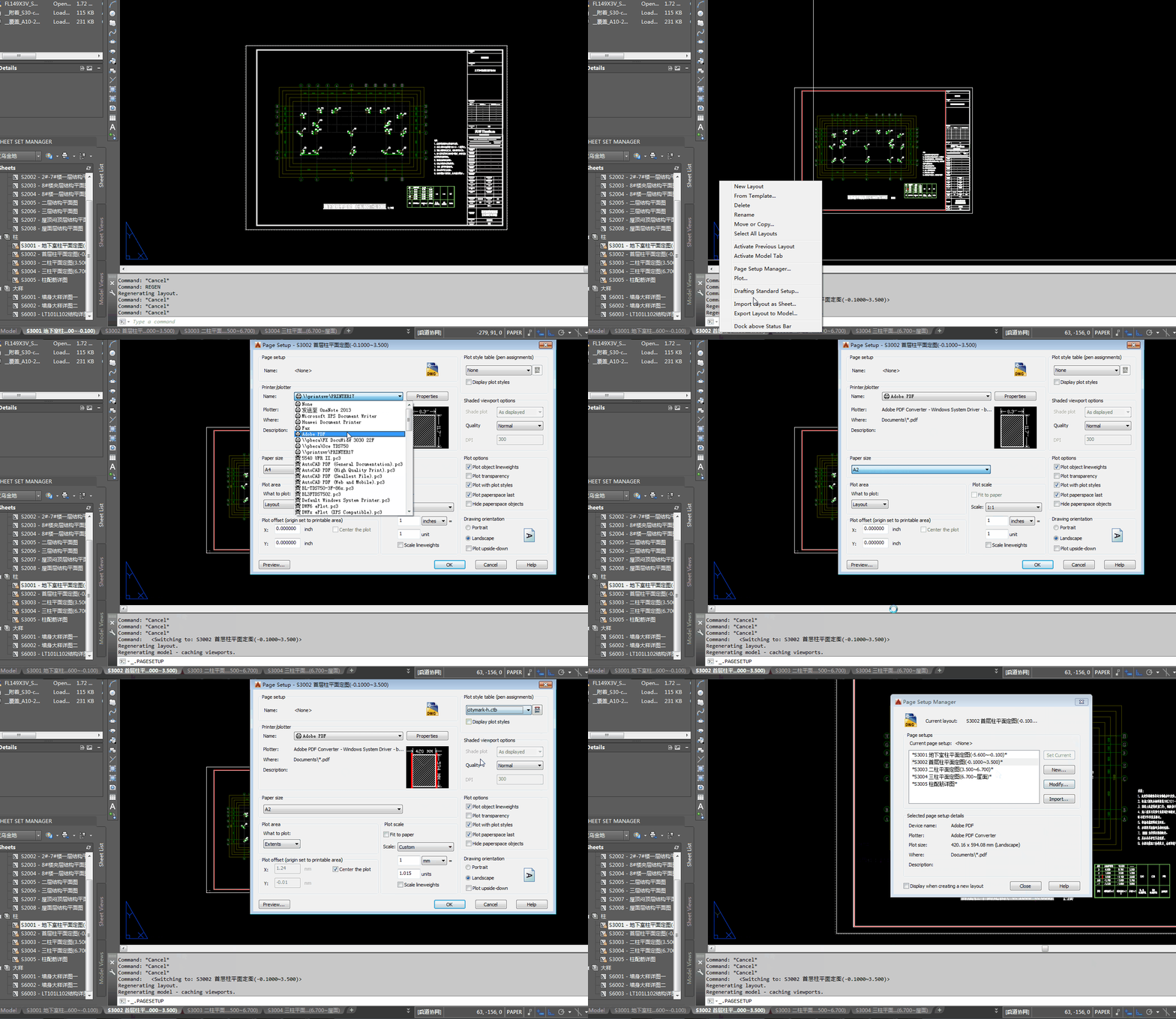
After each drawing is set up, set up batch printing of drawing information. Right-click the drawing set, click publish option, and set the batch printing format. After the print style formatting is completed, click publish to pdf to realize batch printing of pdf.
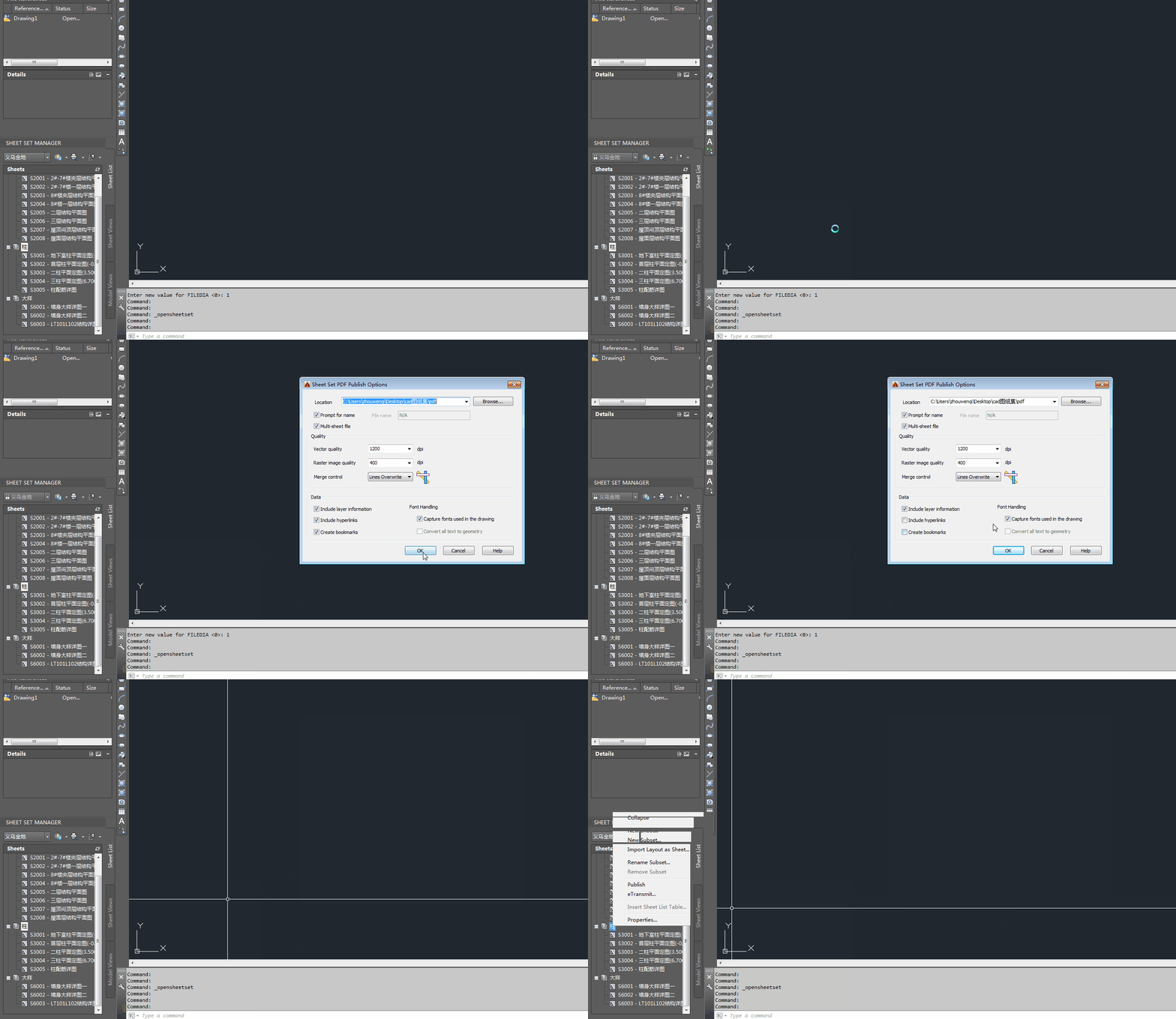
(The interface of cad2016 is slightly different from previous versions)
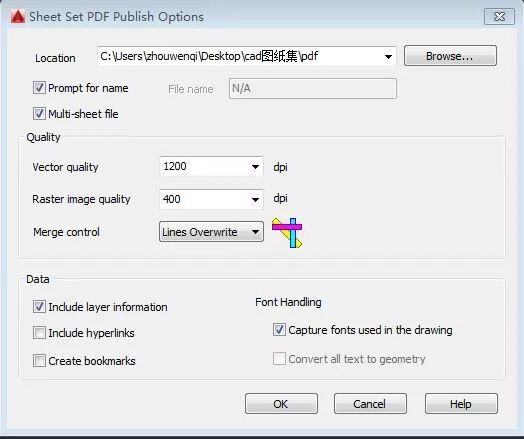
If the multi-sheet file option is checked, all PDFs will be merged into one PDF document. If not, all drawings will be single PDFs. The name of the pdf is the drawing number + drawing name.
- Batch binding
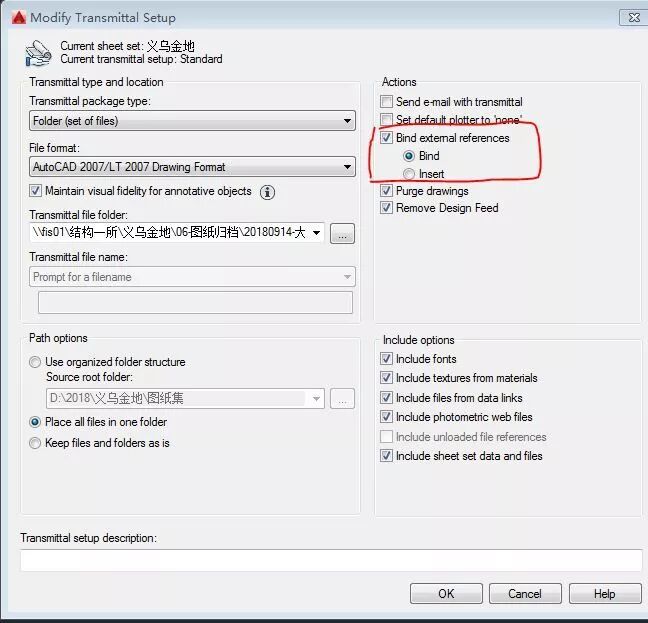
Batch binding requires the use of cad’s etransmit function. Select any drawing set, right-click etransmit, and the electronic transmission option box will pop up. Select the drawings that require electronic transfer.
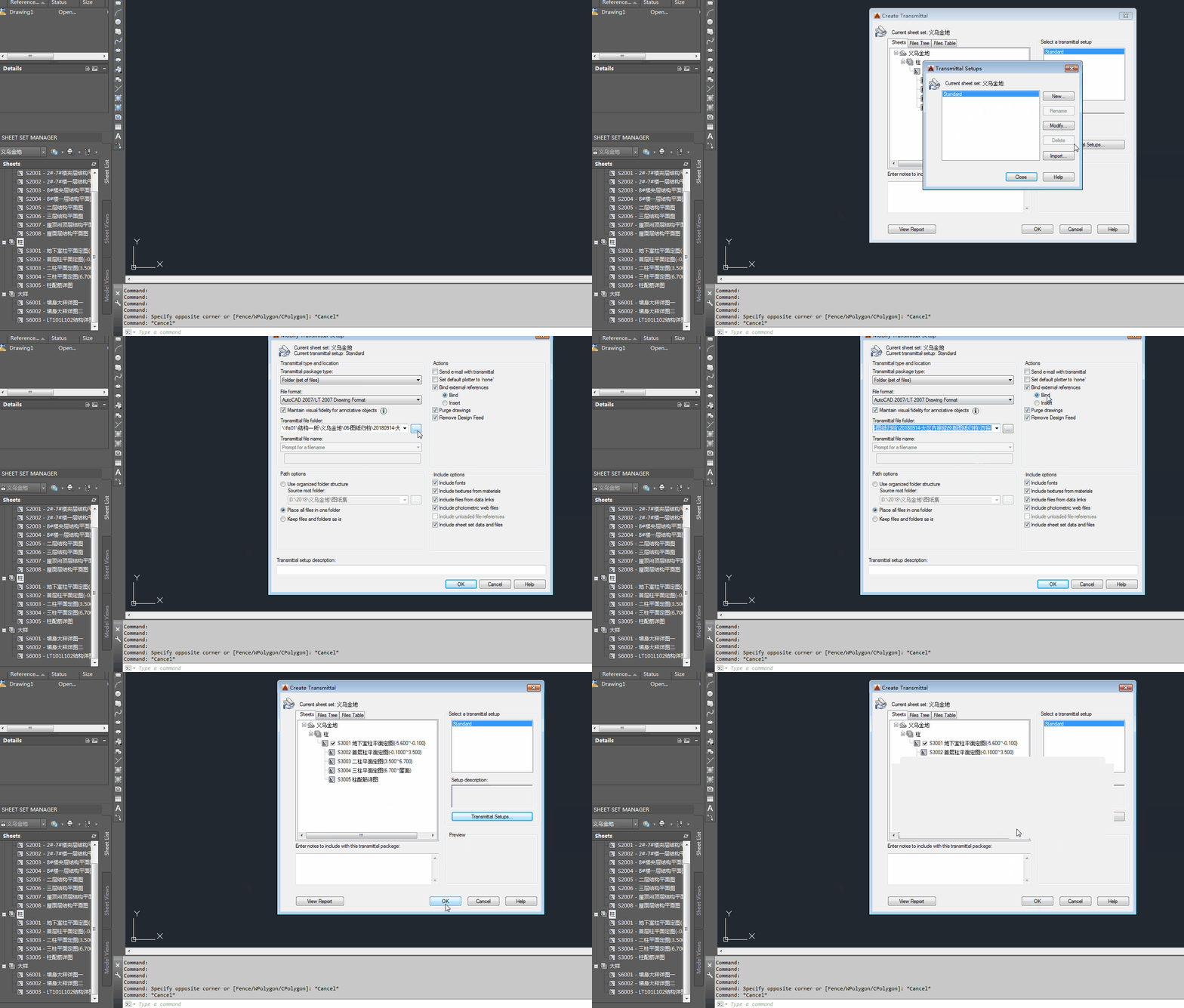
Select etransmit setup to define the method of electronic transmission, including path, binding method, file storage method, etc. Pay special attention to the fact that if binding is required, select bond as the binding option.
- Summary
In addition to drawing sets, CAD has many other functions that have not been discovered by everyone. When we are faced with many mechanically repetitive and time-consuming tasks, why not study some CAD functions that have not been discovered by everyone?
You might like:
The story of humans and karst caves Collection of cases of layout of 200~300m super high-rise structures Brief discussion on form-finding analysis of lattice shell structure and case appreciation Ferris wheels on buildings Grasshopper visual programming preliminary YJK steel structure node design internal force reading tool

*This document is automatically collected and organized by AI from non-deconstructed public accounts and is for learning reference only. *
LOADING…